Introduction
Creating a robust and scalable web infrastructure can be both complex and costly. However, with the right tools and a little bit of creativity, you can build a cost-effective and efficient solution. In this article, we will walk through setting up a Caddy web server on AWS EC2, integrating it with AWS CloudWatch for monitoring, and using AWS Step Functions and Lambda to automate and streamline operations. This guide aims to provide a comprehensive approach to setting up a low-cost dashboard using these technologies.
Step 1: Setting Up Caddy on AWS EC2
Caddy is a powerful, easy-to-use web server that provides automatic HTTPS. It is an excellent choice for managing web traffic and reverse proxying. I use caddy for my home assistants at home
Launch an EC2 Instance:
- Log in to the AWS Management Console.
- Navigate to EC2 and launch a new instance.
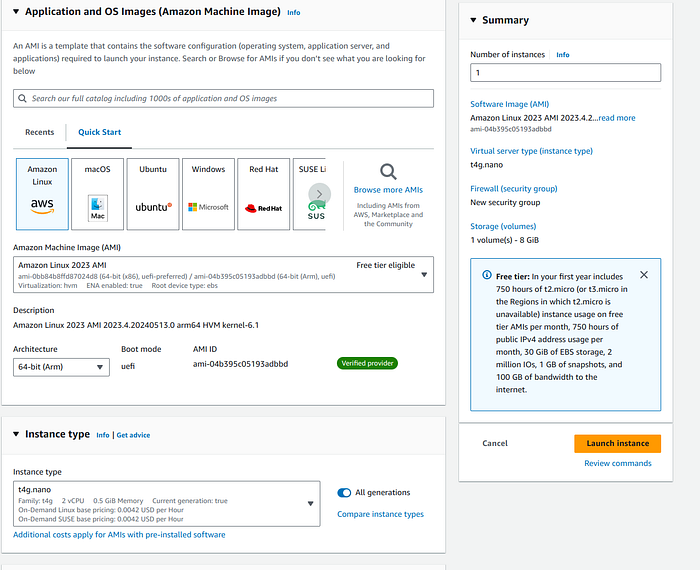
- Choose an Amazon Linux 2 AMI (or any preferred Linux distribution).
- Select an instance type (e.g., t2.micro for the free tier or t4g.nano for 0.10$ a day).
Press enter or click to view image in full size

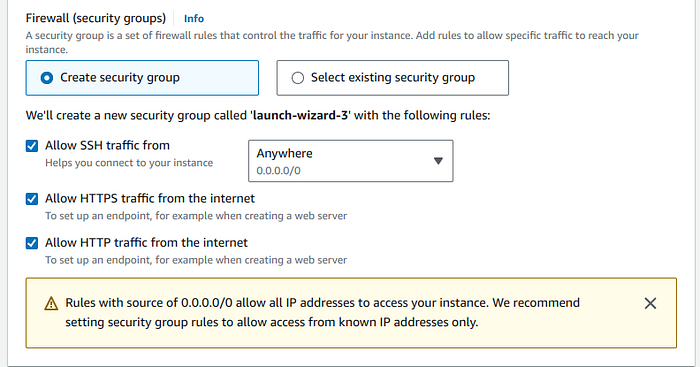
- Configure security group rules to allow HTTP, HTTPS, and SSH access.
Press enter or click to view image in full size

2. Install Caddy:
SSH into your EC2 instance and run the following commands to install Caddy:
sudo yum update -y
sudo yum install -y yum-utils
sudo yum-config-manager — add-repo https://dl.cloudsmith.io/public/caddy/stable/rpm.repo
sudo yum install caddy -y
3. Configure Caddy:
Get Antoine Boucher’s stories in your inbox
Create a Caddy configuration file (Caddyfile) with your domain and proxy settings. Below is an example configuration:
{
email [email protected]
servers {
metrics
}
admin :2019
}
(log_site) {
log {
output file /home/ec2-user/caddy/logs/{args[0]}.log {
roll_size 10mb
roll_keep 5
roll_keep_for 168h
}
level INFO
}
}
antoineboucher.info www.antoineboucher.info {
import log_site antoineboucher.info
reverse_proxy <cloudfront_url>
handle_errors {
redir https://www.github.com/antoinebou12
}
}
linkedin.antoineboucher.info www.linkedin.antoineboucher.info {
import log_site linkedin.antoineboucher.info
redir https://www.linkedin.com/in/antoineboucher12
}
home.antoineboucher.info www.home.antoineboucher.info {
import log_site home.antoineboucher.info
reverse_proxy http://homeip:port
}
Start Caddy:
sudo caddy reload
sudo caddy reload
Step 2: Monitoring with AWS CloudWatch
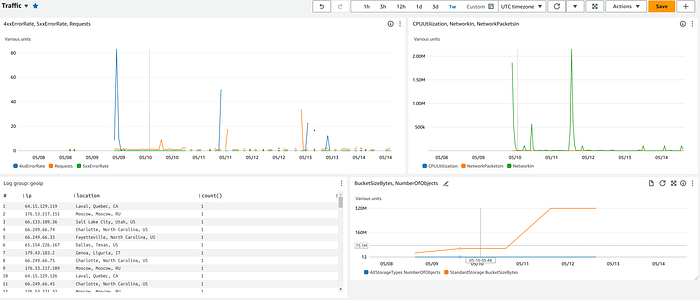
AWS CloudWatch is a monitoring and management service that provides data and actionable insights for AWS, hybrid, and on-premises applications.
- Configure Caddy to Log to CloudWatch: Modify your Caddy configuration to log directly to CloudWatch Logs. You can use the AWS CLI or SDKs to push logs to CloudWatch.
import os
import boto3
from datetime import datetime
# Initialize the CloudWatch client
cloudwatch = boto3.client(’logs’, region_name=‘us-east-1’)
# Define your log group name
log_group_name = ‘reverse_proxy’
# Path to your log directory
log_directory = “/home/ec2-user/caddy/logs”
def send_log_to_cloudwatch(log_stream_name, log_message):
try:
# Get or create the log stream
streams = cloudwatch.describe_log_streams(logGroupName=log_group_name, logStreamNamePrefix=log_stream_name)
if not streams[’logStreams’]:
cloudwatch.create_log_stream(logGroupName=log_group_name, logStreamName=log_stream_name)
# Send log to CloudWatch
cloudwatch.put_log_events(
logGroupName=log_group_name,
logStreamName=log_stream_name,
logEvents=[
{
’timestamp’: int(datetime.now().timestamp() * 1000),
‘message’: log_message
}
]
)
except Exception as e:
print(f"Failed to send log to CloudWatch: {str(e)}")
# Read logs from files and send to CloudWatch
for filename in os.listdir(log_directory):
if filename.endswith(".log"):
log_stream_name = filename[:-4] # Remove .log from filename to use as stream name
file_path = os.path.join(log_directory, filename)
with open(file_path, ‘r’) as file:
for line in file:
send_log_to_cloudwatch(log_stream_name, line.strip())
You can setup a cronjob at night for the python script inside the ec2 instance
sudo yum install cronie -y
sudo systemctl start crond
sudo systemctl enable crond
chmod +x /home/ec2-user/cloudwatch.py
crontab -e
0 0 * * * /usr/bin/python3 /home/ec2-user/cloudwatch.py
- Create CloudWatch Log Group:
aws logs create-log-group - log-group-name reverse_proxy
aws logs create-log-group - log-group-name geoip
Set Up a Lambda Function to Push Logs:
import boto3
import json
import time
from datetime import datetime, timedelta
def lambda_handler(event, context):
client = boto3.client(’logs’)
query = """
fields @timestamp, @message
| parse @message /“remote_ip”: “(?<remote_ip>[^”]+)"/
| stats count() by remote_ip
| sort remote_ip asc
"""
log\_group = 'reverse\_proxy'
start\_query\_response = client.start\_query(
logGroupName=log\_group,
startTime=int((datetime.now() - timedelta(days=1)).timestamp()),
endTime=int(datetime.now().timestamp()),
queryString=query
)
query\_id = start\_query\_response\['queryId'\]
response = None
max\_wait\_time = 30 \# maximum wait time of 30 seconds
start\_time = time.time()
while response is None or response\['status'\] == 'Running':
if time.time() - start\_time > max\_wait\_time:
raise TimeoutError("Query did not complete within the maximum wait time.")
response = client.get\_query\_results(queryId=query\_id)
time.sleep(0.5) \# Reduced sleep interval to check more frequently
ip\_addresses = \[\]
for result in response\['results'\]:
for field in result:
if field\['field'\] == 'remote\_ip':
ip\_addresses.append(field\['value'\])
return {
'statusCode': 200,
'body': json.dumps({'ip\_addresses': ip\_addresses})
}
Step 3: Automating with AWS Step Functions and Lambda
{
“Comment”: “Query CloudWatch Logs and Get IP Geolocation”,
“StartAt”: “QueryLogsInsights”,
“States”: {
“QueryLogsInsights”: {
“Type”: “Task”,
“Resource”: “arn:aws:lambda:us-east-1:590183756542:function:QueryLogsInsights”,
“Next”: “GetGeolocation”
},
“GetGeolocation”: {
“Type”: “Task”,
“Resource”: “arn:aws:lambda:us-east-1:590183756542:function:GeolocationIP”,
“End”: true
}
}
}

Lambda Function for CloudWatch Insights Query:
import json
import urllib3
import boto3
import time
def lambda_handler(event, context):
# Extract IP addresses from the event
ip_addresses = json.loads(event[‘body’])[‘ip_addresses’]
http = urllib3.PoolManager()
results = \[\]
for ip in ip\_addresses:
response = http.request('GET', f"https://ipinfo.io/{ip}/json")
data = json.loads(response.data.decode('utf-8'))
results.append({
'IP': ip,
'Location': f"{data.get('city')}, {data.get('region')}, {data.get('country')}",
'Coordinates': data.get('loc'),
'Organization': data.get('org'),
'Timezone': data.get('timezone')
})
\# Log results to CloudWatch Logs
log\_client = boto3.client('logs')
log\_group\_name = 'geoip'
log\_stream\_name = 'geolocation\_results'
\# Ensure the log group exists
try:
log\_client.create\_log\_group(logGroupName=log\_group\_name)
except log\_client.exceptions.ResourceAlreadyExistsException:
pass
\# Ensure the log stream exists
try:
log\_client.create\_log\_stream(logGroupName=log\_group\_name, logStreamName=log\_stream\_name)
except log\_client.exceptions.ResourceAlreadyExistsException:
pass
\# Put log events for each location
log\_events = \[\]
for result in results:
log\_events.append({
'timestamp': int(time.time() \* 1000), \# Current time in milliseconds
'message': json.dumps(result)
})
\# Split log events into batches of 10 (AWS limit for PutLogEvents)
batch\_size = 10
for i in range(0, len(log\_events), batch\_size):
response = log\_client.put\_log\_events(
logGroupName=log\_group\_name,
logStreamName=log\_stream\_name,
logEvents=log\_events\[i:i+batch\_size\]
)
return {
'statusCode': 200,
'body': json.dumps(results)
}
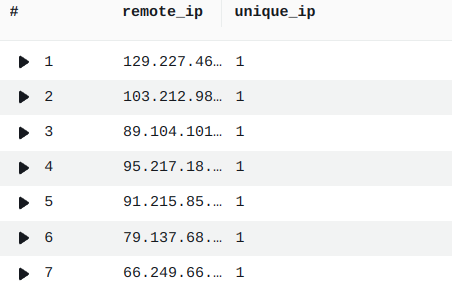
Cloudwatch query to unique ip by subdomain
fields @message
| parse @message /“remote_ip”: “(?<remote_ip>[^”]+)"/
| stats count_distinct(remote_ip) as unique_ip by remote_ip
| sort unique_ip desc

Cloudwatch query to fetch the location
fields @timestamp, @message
| parse @message /“IP”: “(?
| stats count() by ip, location
| sort count desc
Press enter or click to view image in full size

Conclusion
By integrating Caddy on an AWS EC2 instance with AWS CloudWatch, Step Functions, and Lambda, you can create a robust and scalable web infrastructure with a cost-effective dashboard. This setup not only simplifies the management of your web services but also provides powerful monitoring and automation capabilities, making it easier to maintain and optimize your applications. With these tools, you can achieve a high level of efficiency and reliability without breaking the bank.
Originally published on Medium.